 Robbert van der Helm
d632d5643d
Robbert van der Helm
d632d5643d
And reset the seek position after reading. This new approach where we
also read from empty IBStreams to provide a perfect proxy would
otherwise cause plugins to crash in Bitwig when either loading or saving
state.

yabridge


Yet Another way to use Windows VST plugins on Linux. Yabridge seamlessly supports using both 32-bit and 64-bit Windows VST2 and VST3 plugins in a 64-bit Linux VST host as if they were native VST2 and VST3 plugins, with optional support for plugin groups to enable inter-plugin communication for VST2 plugins and quick startup times. Its modern concurrent architecture and focus on transparency allows yabridge to be both fast and highly compatible, while also staying easy to debug and maintain.
VST3 support is currently experimental and only available on the master branch. Yabridge 3.0 will ship with full VST3 support. See this document for all currently implemented interfaces.
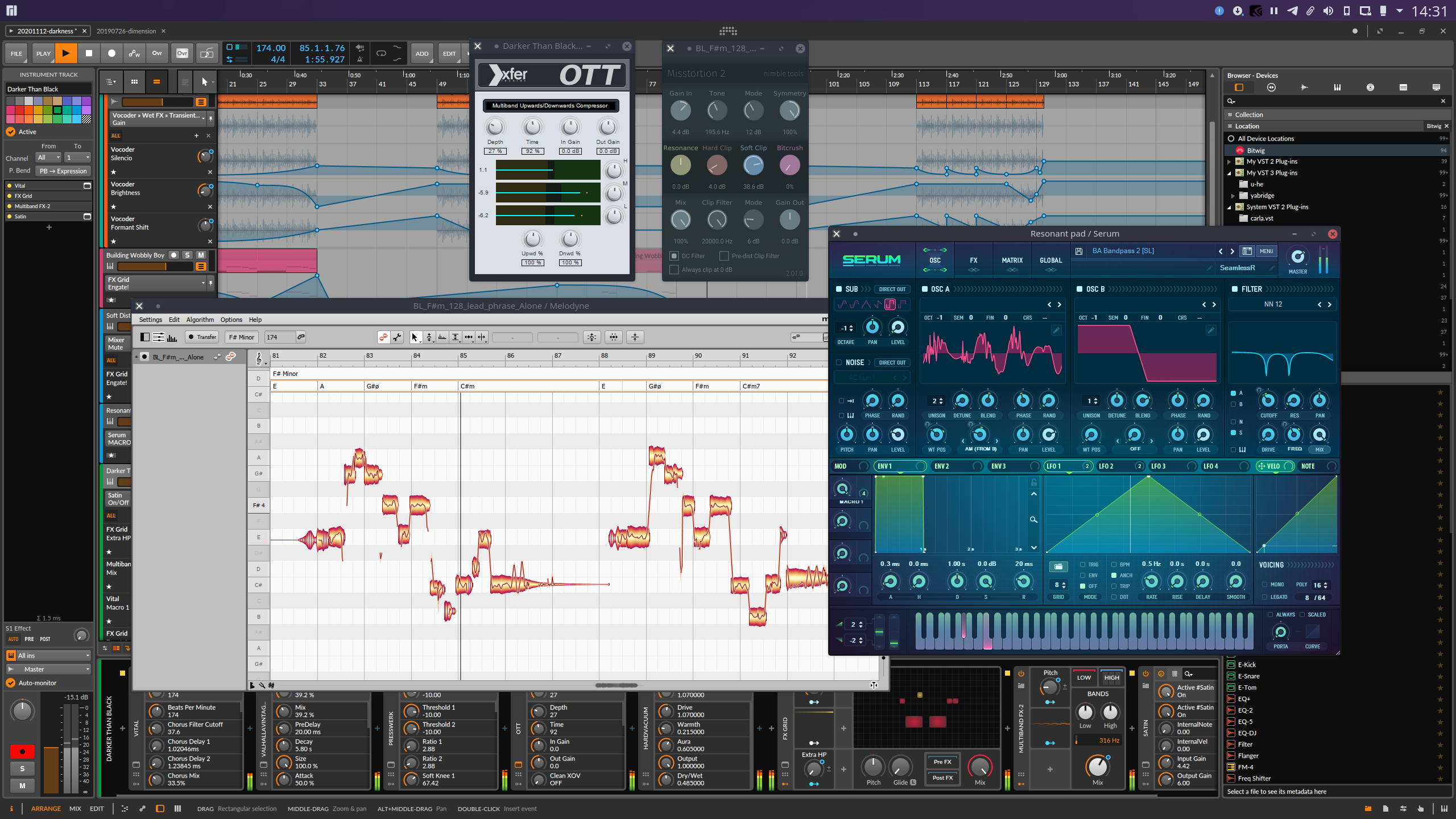
Table of contents
- Tested with
- Usage
- Troubleshooting common issues
- Performance tuning
- Runtime dependencies and known issues
- Building
- Debugging
Tested with
Yabridge has been tested under the following hosts using Wine Staging 6.0:
| Host | VST2 | VST3 |
|---|---|---|
| Bitwig Studio 3.3 | ✔️ | ✔️ |
| Carla 2.2 | ✔️ | ✔️ |
| REAPER 6.19 | ✔️ | ✔️ |
| Renoise 3.3.0 | ✔️ | ⚠️ Editor resizing doesn't work properly because Renoise doesn't call IPlugView::onSize() |
| Ardour 6.5 | ✔️ | ⚠️ Plugins with multiple inputs or outputs might cause Ardour to crash because it does not yet support that |
| Qtractor 0.9.19 | ✔️ | ❌ See rncbc/qtractor#291, this will be fixed in the next Qtractor release |
| Mixbus 6.0.702 | ✔️ | Does not support VST3 |
Please let me know if there are any issues with other hosts.
Usage
You can either download a prebuilt version of yabridge through GitHub's
releases page, or you can
compile it from source using the instructions in the build section
below. If you're downloading the prebuilt version you're using a distro that's
older than Ubuntu 20.04 such as Ubuntu 18.04, Debian 10, or Linux Mint 19, then
you should download the version that ends with -ubuntu-18.04.tar.gz.
Alternatively there are AUR packages available if you are running Arch or
Manjaro (yabridge,
yabridge-bin,
yabridge-git).
Preliminaries
Yabridge requires a recent version of Wine Staging. Users of Debian, Ubuntu, Linux Mint and Pop!_OS should install Wine Staging from the WineHQ repositories as the versions of Wine provided by those distro's repositories will be too old to be used with yabridge.
For a general overview on how to use Wine to install Windows applications, check out Wine's user guide.
Automatic setup (recommended)
The easiest way to get up and running is through
yabridgectl.
You can download yabridgectl from GitHub's releases
page. There are also AUR
packages available if you're running Arch or Manjaro
(yabridgectl,
yabridgectl-git, and it's
also included in
yabridge-bin). More
comprehensive documentation on yabridgectl can be found in its
readme,
or by running yabridgectl --help.
First, yabridgectl needs to know where it can find yabridge's files. If you have
downloaded the prebuilt binaries, then you can simply extract the archive to
~/.local/share and both yabridge and yabridgectl will pick up the files in
~/.local/share/yabridge automatically. You also won't have to do any
additional work if you're using one of the AUR packages. If you have compiled
yabridge from source or if you installed the files to some other location, then
you can use yabridgectl set --path=<path> to tell yabridgectl where it can
find the files.
Next, you'll want to tell yabridgectl where it can find your VST2 and VST3
plugins. Note that VST3 support is not yet available in yabridge 2.x. For
this you can use yabridgectl's add, rm and list commands. You can also use
yabridgectl status to get an overview of the current settings and the
installation status of all of your plugins. To add the most common VST2 plugin
directory, use
yabridgectl add "$HOME/.wine/drive_c/Program Files/Steinberg/VstPlugins". The
directory may be capitalized as VSTPlugins on your system, and some plugins
may install themselves to a similar directory directly inside of Program Files.
VST3 plugins under Windows are always installed to the same directory, and you
can use yabridgectl add "$HOME/.wine/drive_c/Program Files/Common Files/VST3"
to add that one.
Finally, you can run yabridgectl sync to finish setting up yabridge for all of
your plugins. For VST2 plugins this will create .so files alongside the
Windows VST2 plugins, so if you tell your Linux VST host to search for VST2
plugins there you'll be good to go. VST3 plugins are always set up in
~/.vst3/yabridge as per the VST3 specification, and your VST3 host will pick
those up automatically. Don't forget to rerun yabridgectl sync whenever you
update yabridge if you are using the default copy-based installation method.
Manual setup
Setting up yabridge through yabridgectl is the recommended installation method
as it makes setting up plugins and updating yabridge easier. Yabridgectl will
also check for some common issues during the installation process so you can
get up and running faster. To manually set up yabridge for VST2 plugins, first
download and extract yabridge's files just like in the section above. Yabridge's
files have to be extracted to ~/.local/share, such that
~/.local/share/yabridge/libyabridge-vst2.so exists. If you want to set up
yabridge for a VST2 plugin located at
~/.wine/drive_c/Program Files/Steinberg/VstPlugins/plugin.dll,
then you'll have to copy ~/.local/share/yabridge/libyabridge-vst2.so to
~/.wine/drive_c/Program Files/Steinberg/VstPlugins/plugin.so. This process has
to be repeated whenever you download a new version of yabridge.
Doing the same thing for VST3 plugins involves creating a merged VST3 bundle by hand with the Windows VST3 plugin symlinked in. Doing this without yabridgectl is not supported since the process is very error prone.
DAW setup
After first setting up yabridge for VST2 plugins, open your DAW's plugin location
configuration and tell it to search for VST2 plugins under
~/.wine/drive_c/Program Files/Steinberg/VstPlugins, or whichever directories
you've added in yabridgectl. That way it will automatically pick up all of your
Windows VST2 plugins. For VST3 plugins no additional DAW configuration is
needed, as those plugins will be set up under ~/.vst3/yabridge.
If you're using a DAW that does not have an easy way to configure VST2 plugin paths, such as Renoise, then you may want to consider using the following to just symlink the plugin directories to their default search locations:
ln -s "$HOME/.wine/drive_c/Program Files/Steinberg/" ~/.vst/yabridge-steinberg
Bitbridge
If you have downloaded the prebuilt version of yabridge or if have followed the instructions from the bitbridge section below, then yabridge is also able to load 32-bit VST plugins. The installation procedure for 32-bit plugins is exactly the same as for 64-bit plugins. Yabridge will automatically detect whether a plugin is 32-bit or 64-bit on startup and it will handle it accordingly.
Because of the way VST3 bundles work, it's at the moment not possible to choose
between the 32-bit and 64-bit versions of a VST3 plugin if you have both
installed. We'll add a yabridge.toml option for this later.
Wine prefixes
It is also possible to use yabridge with multiple Wine prefixes. Yabridge will
automatically detect and use the Wine prefix the plugin's .dll file is located
in. Alternatively you can set the WINEPREFIX environment variable to override
the Wine prefix for all instances of yabridge.
Search path setup
This section is only relevant if you're using the copy-based installation
method and your yabridge files are located somewhere other than in
~/.local/share/yabridge. You can likely skip this section. If you're using one
of the AUR packages then you also don't have to worry about any of this.
Yabridge needs to know where it can find yabridge-host.exe. By default
yabridge will search your through search path as well as in
~/.local/share/yabridge if that exists. When loading yabridge from a
non-standard location, such as when building from source, you may have to modify
your login shell's PATH environment variable so that yabridge is able to
find its files. Yabridgectl will automatically check whether this is set up
correctly when you run yabridgectl sync, and it will show a warning if it
detects any issues. If you do not see such a warning after running yabridgectl sync, then you can skip this section.
To set this, you'll want to add yabridge's installation directory to your login
shell's PATH environment variable. If you're unsure what your login shell is,
then you can open a terminal and run echo $SHELL to find out. For the below
examples I'll assume you're using the default installation location at
~/.local/share/yabridge.
-
If you are using the default Bash shell, then you will want to add the following line to
~/.bash_profile(or~/.profileif it does not exist):export PATH="$HOME/.local/share/yabridge:$PATH" -
If you are using Zsh, then you can add the following line to
~/.zprofile(~/.zshenvshould also work, but some distros such as Arch Linux overwritePATHafter this file has been read):export PATH="$HOME/.local/share/yabridge:$PATH" -
If you are using fish, then you can add the following line to either
~/.config/fish/config.fishor some file in~/.config/fish/conf.d/:set -gp fish_user_paths ~/.local/share/yabridge
Rerun yabridgectl sync to make sure that the setup has been successful. If the
environment variable has been set up correctly, you should not be seeing any
warnings. Make sure to log out and log back in again to ensure that all
applications pick up the new changes.
Configuration
Yabridge can be configured on a per plugin basis to host multiple plugins within a single process using plugin groups, and there are also a variety of compatibility options available to improve compatibility with certain hosts and plugins.
Configuring yabridge is done through a yabridge.toml file located in either
the same directory as the plugin's .so file you're trying to configure, or in
any of its parent directories. This file contains case sensitive
glob patterns that
match paths to yabridge .so files relative to the yabridge.toml file. These
patterns can also match an entire directory to apply settings to all plugins
within that directory. To avoid confusion, only the first yabridge.toml file
found and only the first matching glob pattern within that file will be
considered. See below for an example of a yabridge.toml file.
Plugin groups
| Option | Values | Description |
|---|---|---|
group |
{"<string>",""} |
Defaults to "", meaning that the plugin will be hosted individually. |
Some plugins have the ability to communicate with other instances of that same plugin or even with other plugins made by the same manufacturer. This is often used in mixing plugins to allow different tracks to reference each other without having to route audio between them. Examples of plugins that do this are FabFilter Pro-Q 3, MMultiAnalyzer and the iZotope mixing plugins. In order for this to work, all instances of a particular plugin will have to be hosted in the same process.
Yabridge has the concept of plugin groups, which are user defined groups of
plugins that will all be hosted inside of a single process. Plugins groups can
be configured for a plugin by setting the group option of that plugin to some
name. All plugins with the same group name will be hosted within a single
process. Of course, plugin groups with the same name but in different Wine
prefixes and with different architectures will be run independently of each
other. See below for an example of how these groups can be set up.
Note that because of the way VST3 works, multiple instances of a single VST3 plugin will always be hosted in a single process regardless of whether you have enabled plugin groups or not. The only reason to use plugin groups with VST3 plugins is to get slightly lower loading times the first time you load a new plugin.
Compatibility options
| Option | Values | Description |
|---|---|---|
cache_time_info |
{true,false} |
Compatibility option for plugins that call audioMasterGetTime() multiple times during a single processing cycle. With this option subsequent calls during a single audio processing cycle will reuse the value returned by the first call to this function. This is a bug in the plugin, and this option serves as a temporary workaround until the plugin fixes the issue. |
editor_double_embed |
{true,false} |
Compatibility option for plugins that rely on the absolute screen coordinates of the window they're embedded in. Since the Wine window gets embedded inside of a window provided by your DAW, these coordinates won't match up and the plugin would end up drawing in the wrong location without this option. Currently the only known plugins that require this option are PSPaudioware plugins with expandable GUIs, such as E27. Defaults to false. |
editor_xembed |
{true,false} |
Use Wine's XEmbed implementation instead of yabridge's normal window embedding method. Some plugins will have redrawing issues when using XEmbed and editor resizing won't always work properly with it, but it could be useful in certain setups. You may need to use this Wine patch if you're getting blank editor windows. Defaults to false. This option is only availble on the master branch. |
These options are workarounds for issues mentioned in the known issues section. Depending on the hosts and plugins you use you might want to enable some of them.
Example
All of the paths used here are relative to the yabridge.toml file. A
configuration file for VST2 plugins might look a little something like this:
# ~/.wine/drive_c/Program Files/Steinberg/VstPlugins/yabridge.toml

["FabFilter Pro-Q 3.so"]
group = "fabfilter"

["MeldaProduction/Tools/MMultiAnalyzer.so"]
group = "melda"

# Matches an entire directory and all files inside it, make sure to not include
# a trailing slash
["ToneBoosters"]
group = "toneboosters"

["PSPaudioware"]
editor_double_embed = true

["Analog Lab 3.so"]
editor_xembed = true

["SWAM Cello 64bit.so"]
cache_time_info = true

# Simple glob patterns can be used to avoid unneeded repetition
["iZotope*/Neutron *"]
group = "izotope"

# Since this file has already been matched by the above glob pattern, this won't
# do anything
["iZotope7/Neutron 2 Mix Tap.so"]
group = "This will be ignored!"

# Of course, you can also add multiple plugins to the same group by hand
["iZotope7/Insight 2.so"]
group = "izotope"

# This would cause all plugins to be hosted within a single process. Doing so
# greatly reduces the loading time of individual plugins, with the caveat being
# that plugins are no longer sandboxed from eachother.
#
# ["*"]
# group = "all"
For VST3 plugins you should just match the directory instead of the .so file
deep within in, like this:
# ~/.vst3/yabridge/yabridge.toml

["FabFilter*.vst3"]
group = "fabfilter"

["Misstortion2.vst3"]
# This option is not needed and also not recommended, but an example config file
# without any options looks weird
editor_xembed = true
Troubleshooting common issues
If your problem is not listed here, then feel free to post on the issue tracker or to ask in the Discord.
-
If you have the
WINEPREFIXenvironment variable set and you don't want all of your plugins to use that specific Wine prefix then you should unset it to allow yabridge to automatically detect Wine prefixes for you. -
If you're using the copy-based installation method and plugins are getting skipped or blacklisted immediately when your VST host is scanning them, then this is likely caused by
yabridge-host.exenot being found in your search path. See the search path setup section for instructions on how to fix this. -
If you're using the symlink installation method and you're seeing multiple duplicate instances of the same plugin, or after opening a single plugin every subsequent plugin opens as another instance of that first plugin, then your VST host is not sandboxing individual plugins. If you're using Bitwig Studio, the make sure the 'Per plugin-in'` or 'Individually' plugin hosting mode is enabled and all of the checkboxes in the list of sandboxing exceptions are left unchecked.
-
If you're not using yabridgectl and a plugin is not getting picked up at all, then you can verify that the symlink or copy is correct by running:
readelf -s ~/.wine/drive_c/path/to/plugin.so | grep yabridgeThe output should contain several lines related to yabridge.
-
If you're seeing errors related to Wine either when running
yabridgectl syncor when trying to load a plugin, then it can be that your installed version of Wine is much older than the version that yabridge has been compiled for. Yabridgectl will automatically check for this when you runyabridgectl syncafter updating Wine or yabridge. You can also manually verify that Wine is working correctly by running one of the VST host applications. Assuming that yabridge is installed under~/.local/share/yabridge, then running~/.local/share/yabridge/yabridge-host.exedirectly (so notwine ~/.local/share/yabridge/yabridge-host.exe, that won't work) in a terminal should print a few messages related to Wine's startup process followed by the following line:Usage: yabridge-host.exe <vst_plugin_dll> <endpoint_base_directory>If you're seeing a
002b:err:module:__wine_process_initerror instead, then your version of Wine is too old for this version of yabridge and you'll have to upgrade your Wine version. Instructions for how to do this on Ubuntu can be found on the WineHQ website. -
Timeout errors during plugin scanning are caused by the Wine process not being able to start. There should be plugin output messages in your DAW or terminal that with more information on what went wrong.
-
Sometimes left over Wine processes can cause problems. Run
wineserver -kto terminate Wine related in the current or default Wine prefix. -
If you're using a lot of plugins and you're unable to load any new plugins, then you may be running into Xorg's client limit. The exact number of plugins it takes for this to happen will depend on your system and the other applications running in the background. An easy way to check if this is the case would be to try and run
wine cmd.exefrom a terminal. If this prints a message about the maximum number of clients being reached (or if you are not able to open the terminal at all), then you might want to consider using plugin groups to run multiple instances of your most frequently used plugins within a single process.
Performance tuning
Running Windows VST plugins under Wine should have minimal performance impact, but you may still notice an increase in audio spikes and overall processing latency. Luckily there are a few things you can do to get rid of most or all of these negative side effects:
-
First of all, you'll want to make sure that you can run programs with realtime priorities. Note that on Arch and Manjaro this does not necessarily require a realtime kernel as they include the
PREEMPTpatch set in their regular kernels. You can verify that this is workign correctly by runningchrt -f 10 whoami, which should print your username. -
The other even more important thing you can do is to use a build of Wine with Proton's fsync patches. This can improve performance significantly, especially when using a lot of plugins at the same time. If you're running Arch or Manjaro, then you can use the wine-nspa PKGBUILD for an audio production optimized version of Wine Staging 5.9, or wine-tkg for a more up to date version with a different patch set. Aside from a patched copy of Wine you'll also need a supported kernel for this to work. Manjaro's kernel supports fsync out of the box, and on Arch you can use the
linux-zenkernel. Finally you'll have to set theWINEFSYNCenvironment variable to1to enable fsync. See the search path setup section for more information on where to do this. You can use the following command to check if this is set correctly:env -i HOME="$HOME" $SHELL -l -c 'echo $WINEFSYNC'If this prints
1then everything is set up correctly. Runningwinebootfrom a terminal should now also printfsync: up and running.. You'll have to log out and back in again for this to take effect on applications launched from the GUI.If anyone knows a good way to install an fsync patched version of Wine on other distros, then please let me know!
-
Plugin groups can also greatly improve performance when using many instances of the same VST2 plugin. VST3 plugins have similar functionality built in by design. Some plugins, like the BBC Spitfire plugins, can share a lot of resources between different instances of the plugin. Hosting all instances of the same plugin in a single process can in those cases greatly reduce overall CPU usage and get rid of latency spikes.
Runtime dependencies and known issues
Any plugin should function out of the box, although some plugins will need some additional dependencies for their GUIs to work correctly. Notable examples include:
-
Serum requires you to disable
d2d1.dllinwinecfgand to installgdiplusthroughwinetricks. -
Native Instruments plugins work, but Native Access is unable to finish installing the plugins. To work around this you can open the .iso file downloaded to your downloads directory and run the installer directly. When activating the plugins you may have to cancel the self-updating in NI Service Center. You may also have to manually terminate the ISO driver installation process when installing Native Access for the first time to allow the installation to proceed.
-
MeldaProduction plugins have minor rendering issues when GPU acceleration is enabled. This can be fixed by disabling GPU acceleration in the plugin settings. I'm not sure whether this is an issue with Wine or the plugins themselves. Notable issues here are missing redraws and incorrect positioning when the window gets dragged offscreen on the top and left dies of the screen.
-
If Scaler 2's interface lags, blacks out, or otherwise renders poorly, then you can try enabling software rendering to fix these issues.
-
Plugins by KiloHearts have file descriptor leaks when esync is enabled, causing Wine and yabridge to eventually stop working after the system hits the open file limit. To fix this, either unset
WINEESYNCwhile using yabridge or switch to using fsync. -
PSPaudioware plugins with expandable GUIs, such as E27, may have their GUI appear in the wrong location after the GUI has been expanded. You can enable an alternative editor hosting mode to fix this.
-
SWAM Cello has a bug where it asks the host for the current buffer's time and tempo information for every sample it processes instead of doing it only once per buffer, resulting in very bad performance. You can enable the time info cache compatibility option to work around this until this is fixed on the plugin's side.
-
Plugins like FabFilter Pro-Q 3 that can share data between different instances of the same plugin plugins have to be hosted within a single process for that functionality to work. See the plugin groups section for instructions on how to set this up.
-
Drag-and-drop from applications running under Wine to X11 does not yet work, so you won't be able to drag samples and MIDI files from a plugin to the host. At least, not directly. Because Windows applications have to create actual files on the disk for drag-and-drop to work, you can keep a file explorer open and manually drag the generated files into your DAW as a workaround. To find out where in
~/.winethe plugin is creating its files, you can use the following command to monitor the Wine prefix for any newly created files:inotifywait -mre CLOSE_WRITE --format '%w%f' ~/.wine/drive_c
Aside from that, these are some known caveats:
- Most recent iZotope plugins don't have a functional GUI in a typical out of the box Wine setup because of missing dependencies. Please let me know if you know which dependencies are needed for these plugins to render correctly.
- MIDI key labels (commonly used for drum machines and multisamplers) will not be updated after the host first asks for them since VST 2.4 has no way to let the host know that those labels have been updated. Deactivating and reactivating the plugin will cause these labels to be updated again for the current patch.
There are also some VST2.X extension features that have not been implemented yet because I haven't seen them used. Let me know if you need any of these features for a certain plugin or VST host:
- SysEx messages. In addition to MIDI, VST 2.4 also supports SysEx. I don't know of any hosts or plugins that use this, but please let me know if this is needed for something.
- Vendor specific extension (for instance, for REAPER, though most of these extension functions will work out of the box without any modifications).
Building
To compile yabridge, you'll need Meson and the following dependencies:
- GCC 10+*
- A Wine installation with
winegccand the development headers. The latest commits contain a workaround for a winelib compilation issue with Wine 5.7+. - Boost version 1.66 or higher*
- libxcb
The following dependencies are included in the repository as a Meson wrap:
- bitsery
- function2
- tomlplusplus
- Version 3.7.1 of the VST3 SDK with some patches to allow Winelib compilation
The project can then be compiled with the command below. You can remove or
change the unity size argument if building takes up too much RAM, or you can
disable unity builds completely by getting rid of --unity=on at the cost of
slightly longer build times.
meson setup --buildtype=release --cross-file=cross-wine.conf --unity=on --unity-size=1000 build
ninja -C build
After you've finished building you can follow the instructions under the usage section on how to set up yabridge.
*The versions of GCC and Boost that ship with Ubuntu 18.04 by default are too old to compile yabridge. If you do wish to build yabridge from scratch rather than using the prebuilt binaries, then you should take a look at the docker image used when building yabridge on Ubuntu 18.04 for on overview of what would need to be installed to compile on Ubuntu 18.04.32-bit bitbridge
It is also possible to compile a host application for yabridge that's compatible with 32-bit plugins such as old SynthEdit plugins. This will allow yabridge to act as a bitbridge, allowing you to run old 32-bit only Windows VST2 plugins in a modern 64-bit Linux VST host. For this you'll need to have installed the 32 bit versions of the Boost and XCB libraries. This can then be set up as follows:
# Enable the bitbridge on an existing build
meson configure build -Dwith-bitbridge=true
# Or configure a new build from scratch
meson setup --buildtype=release --cross-file cross-wine.conf -Dwith-bitbridge=true build

ninja -C build
This will produce four files called yabridge-host-32.exe,
yabridge-host-32.exe.so, yabridge-group-32.exe and
yabridge-group-32.exe.so. Yabridge will detect whether the plugin you're
trying to load is 32-bit or 64-bit, and will run either the regular version or
the *-32.exe variant accordingly.
Debugging
Wine's error messages and warning are usually very helpful whenever a plugin doesn't work right away. However, with some VST hosts it can be hard read a plugin's output. To make it easier to debug malfunctioning plugins, yabridge offers these two environment variables to control yabridge's logging facilities:
-
YABRIDGE_DEBUG_FILE=<path>allows you to write yabridge's debug messages as well as all output produced by the plugin and by Wine itself to a file. For instance, you could launch your DAW withenv YABRIDGE_DEBUG_FILE=/tmp/yabridge.log <daw>, and then usetail -F /tmp/yabridge.logto keep track of the output. If this option is not present then yabridge will write all of its debug output to STDERR instead. -
YABRIDGE_DEBUG_LEVEL={0,1,2}allows you to set the verbosity of the debug information. Each level increases the amount of debug information printed:- A value of
0(the default) means that yabridge will only log the output from the Wine process the Wine process and some basic information about the environment, the configuration and the plugin being loaded. - A value of
1will log detailed information about most events and function calls sent between the VST host and the plugin. This filters out some noisy events such aseffEditIdle()andaudioMasterGetTime()since those are sent multiple times per second by for every plugin. - A value of
2will cause all of the events to be logged without any filtering. This is very verbose but it can be crucial for debugging plugin-specific problems.
More detailed information about these debug levels can be found in
src/common/logging.h. - A value of
Wine's own logging facilities can also
be very helpful when diagnosing problems. In particular the +message,
+module and +relay channels are very useful to trace the execution path
within loaded VST plugin itself.
Attaching a debugger
To debug the plugin you can just attach gdb to the host as long as any sandboxing or out of process hosting is disabled (or you'll have to wrap around that host process). Debugging the Wine plugin host is a bit more difficult. Wine comes with a GDB proxy for winedbg, but it requires a little bit of additional setup and it doesn't support arguments containing spaces. To make this a bit easier, yabridge includes winedbg support behind a build option. You can enable this using:
meson configure build --buildtype=debug -Dwith-winedbg=true
Currently winedbg's normal GDB proxy is broken, so this option will start a
remote GDB server that you have to connect to. You can use gdb build/yabridge-host.exe.so to start GDB, and then use the GDB target command
printed to STDERR or $YABRIDGE_DEBUG_FILE to start the debugging session. Note
that plugin names with spaces in the actual .dll or .vst3 file name will
have to be renamed first for this appraoch to work.