mirror of
https://github.com/robbert-vdh/yabridge.git
synced 2026-05-07 03:50:11 +02:00
 Robbert van der Helm
2d0998047c
Robbert van der Helm
2d0998047c
I had swapped these names around once before but I think going with
PluginBridge for the plugin and WineBridge for the Wine VST host is the
least ambiguous it can get.
388 lines
20 KiB
Markdown
388 lines
20 KiB
Markdown
# yabridge
|
|
|
|
[](https://github.com/robbert-vdh/yabridge/actions?query=workflow%3A%22Automated+builds%22+branch%3Amaster)
|
|
|
|
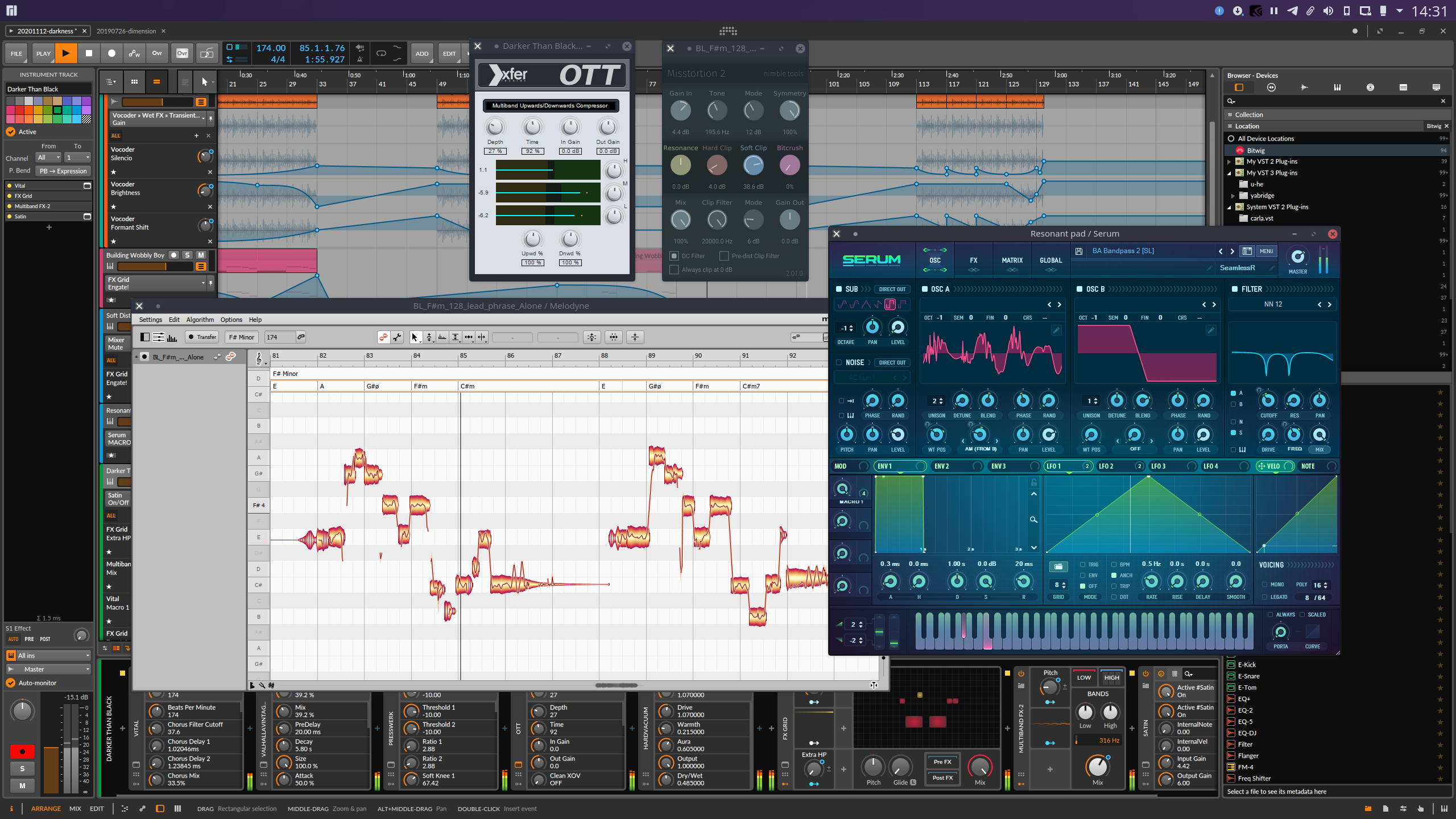
Yet Another way to use Windows VST plugins on Linux. Yabridge seamlessly
|
|
supports running both 64-bit Windows VST2 plugins as well as 32-bit Windows VST2
|
|
plugins in a 64-bit Linux VST host. This project aims to be as transparent as
|
|
possible to achieve the best possible plugin compatibility while also staying
|
|
easy to debug and maintain.
|
|
|
|
|
|
|
|
## Tested with
|
|
|
|
Yabridge has been verified to work correctly in the following VST hosts using
|
|
Wine Staging 5.5 and 5.6:
|
|
|
|
- Bitwig Studio 3.1 and the beta releases of 3.2
|
|
- Carla 2.1
|
|
- Ardour 5.12
|
|
- REAPER 6.09
|
|
|
|
At the moment there is a regression in **Wine 5.7** that breaks application
|
|
startup behavior, so you'll have to temporarily downgrade to an earlier version
|
|
of Wine if you're got Wine 5.7 installed. Please let me know if there are any
|
|
issues with other VST hosts.
|
|
|
|
## Usage
|
|
|
|
You can either download a prebuilt version of yabridge through the GitHub
|
|
[releases](https://github.com/robbert-vdh/yabridge/releases) section, or you can
|
|
compile it from source using the instructions in the [build](#Building) section
|
|
below.
|
|
|
|
There are two ways to use yabridge. If you're using Bitwig Studio, then the
|
|
recommended installation method is to use symbolic links. The main advantage
|
|
here is that you will be able to update yabridge for all of your plugins in one
|
|
go, and it avoids having to install anything outside of your home directory.
|
|
Sadly, not all hosts support this behavior. The copy-based installation will
|
|
work for all hosts.
|
|
|
|
If you have downloaded the prebuilt version of yabridge or if have followed the
|
|
instructions from the [bitbridge](#32-bit-bitbridge) section below, then
|
|
yabridge is also able to load 32-bit VST plugins. The installation procedure for
|
|
32-bit plugins is exactly the same as for 64-bit plugins. Yabridge will detect
|
|
whether a plugin is 32-bit or 64-bit on startup and it will handle it
|
|
accordingly.
|
|
|
|
It's also possible to use yabridge with multiple Wine prefixes. Yabridge will
|
|
automatically detect and use the Wine prefix the plugin's `.dll` file is located
|
|
in. Alternatively you could set the `WINEPREFIX` environment variable to
|
|
override the Wine prefix for all instances of yabridge.
|
|
|
|
### Symlinking (recommended with Bitwig Studio)
|
|
|
|
This is the recommended way to use yabridge if you're using Bitwig Studio You
|
|
can either use the prebuilt binaries from the GitHub releases section, or you
|
|
can build yabridge directly from source. If you use the prebuilt binaries, then
|
|
you can simply extract them to `~/.local/share/yabridge` or to anywhere else in
|
|
your home directory. If you choose to build from source, then you can use the
|
|
compiled binaries directly from the `build/` directory. For the section below
|
|
I'm going to assume you've extracted the files to `~/.local/share/yabridge`.
|
|
|
|
To set up yabridge for a VST plugin called
|
|
`~/.wine/drive_c/Program Files/Steinberg/VstPlugins/plugin.dll`,
|
|
simply create a symlink from `~/.local/share/yabridge/libyabridge.so` to
|
|
`~/.wine/drive_c/Program Files/Steinberg/VstPlugins/plugin.so` like so:
|
|
|
|
```shell
|
|
ln -s ~/.local/share/yabridge/libyabridge.so "$HOME/.wine/drive_c/Program Files/Steinberg/VstPlugins/plugin.so"
|
|
```
|
|
|
|
As an example, if you wanted to set up yabridge for all VST plugins under
|
|
`~/.wine/drive_c/Program Files/Steinberg/VstPlugins`, you could run the
|
|
following script in Bash. This will skip any `.dll` files that are not actually
|
|
VST plugins.
|
|
|
|
```shell
|
|
yabridge_home=$HOME/.local/share/yabridge
|
|
|
|
find "$HOME/.wine/drive_c/Program Files/Steinberg/VstPlugins" -type f -iname '*.dll' -print0 |
|
|
xargs -0 -P$(nproc) -I{} bash -c "(winedump -j export '{}' | grep -qE 'VSTPluginMain|main|main_plugin') && printf '{}\0'" |
|
|
sed -z 's/\.dll$/.so/' |
|
|
xargs -0 -n1 ln -sf "$yabridge_home/libyabridge.so"
|
|
```
|
|
|
|
### Copying
|
|
|
|
If your VST host does not have support for symlinked VST plugins, then you can
|
|
also install yabridge by creating copies of the `libyabridge.so` file instead of
|
|
using symlinks. For this you will have to make sure that all four of the
|
|
`yabridge-host*` files from the downloaded archive are somewhere in the search
|
|
path. The recommended way to do this is to download yabridge from the GitHub
|
|
[releases](https://github.com/robbert-vdh/yabridge/releases) section, extract
|
|
all the files to `~/.local/share/yabridge`, and then add that directory to your
|
|
`$PATH` environment variable. Alternatively there's an [AUR
|
|
package](https://aur.archlinux.org/packages/yabridge/) available if you're
|
|
running Arch or Manjaro.
|
|
|
|
The installation process for a plugin is the same as the procedure described
|
|
above, but instead of creating a symlink from `libyabridge.so` to `plugin.so`,
|
|
you'll now have to create a copy. Using the same example, if you have extracted
|
|
yabridge's files to `~/.local/share/yabridge` and you want to set up yabridge
|
|
for a VST plugin called `~/.wine/drive_c/Program Files/Steinberg/VstPlugins/plugin.dll`, then you should copy
|
|
`~/.local/share/yabridge/libyabridge.so` to `~/.wine/drive_c/Program Files/Steinberg/VstPlugins/plugin.so` like so:
|
|
|
|
```shell
|
|
cp ~/.local/share/yabridge/libyabridge.so "$HOME/.wine/drive_c/Program Files/Steinberg/VstPlugins/plugin.so"
|
|
```
|
|
|
|
To install yabridge for all VST2 plugins under `~/.wine/drive_c/Program Files/Steinberg/VstPlugins` you could use the following script:
|
|
|
|
```shell
|
|
yabridge_home=$HOME/.local/share/yabridge
|
|
|
|
find "$HOME/.wine/drive_c/Program Files/Steinberg/VstPlugins" -type f -iname '*.dll' -print0 |
|
|
xargs -0 -P$(nproc) -I{} bash -c "(winedump -j export '{}' | grep -qE 'VSTPluginMain|main|main_plugin') && printf '{}\0'" |
|
|
sed -z 's/\.dll$/.so/' |
|
|
xargs -0 -n1 cp "$yabridge_home/libyabridge.so"
|
|
```
|
|
|
|
### DAW setup
|
|
|
|
Finally, open your DAW's VST location configuration and tell it to look for
|
|
plugins under `~/.wine/drive_c/Program Files/Steinberg/VstPlugins`. That way it
|
|
will automatically pick up any of your Windows VST2 plugins.
|
|
|
|
## Runtime dependencies and known issues
|
|
|
|
Any VST2 plugin should function out of the box, although some plugins will need
|
|
some additional dependencies for their GUIs to work correctly. Notable examples
|
|
include:
|
|
|
|
- **Serum** requires you to disable `d2d1.dll` in `winecfg` and to install
|
|
`gdiplus` through `winetricks`.
|
|
|
|
Aside from that, these are some known caveats:
|
|
|
|
- Plugins by **KiloHearts** have file descriptor leaks when esync is enabled,
|
|
causing Wine and yabridge to eventually stop working after the system hits the
|
|
open file limit. This sadly cannot be fixed in yabridge. Simply unset
|
|
`WINEESYNC` while using yabridge if this is an issue.
|
|
- Most recent **iZotope** plugins don't have a functional GUI in a typical out
|
|
of the box Wine setup because of missing dependencies. Please let me know if
|
|
you know which dependencies are needed for these plugins to render correctly.
|
|
- Some plugins, such as **Fabfilter Pro-Q 3**, are able to communicate between
|
|
different instances of the same plugin by relying on the fact that they're all
|
|
loaded into the same process. Right now this is something that yabridge does
|
|
not do as it would break any form of sandboxing, meaning that if one plugin
|
|
were to crash, all other plugins would go down with it. If this is something
|
|
you need for your workflow, please let me know.
|
|
|
|
There are also some VST2.X extension features that have not been implemented yet
|
|
because I haven't needed them myself. Let me know if you need any of these
|
|
features for a certain plugin or VST host:
|
|
|
|
- Double precision audio (`processDoubleReplacing`).
|
|
- Vendor specific extension (for instance, for
|
|
[REAPER](https://www.reaper.fm/sdk/vst/vst_ext.php), though most of these
|
|
extension functions will work out of the box without any modifications).
|
|
|
|
## Building
|
|
|
|
To compile yabridge, you'll need [Meson](https://mesonbuild.com/index.html) and
|
|
the following dependencies:
|
|
|
|
- gcc (tested using GCC 9.2)
|
|
- A Wine installation with `winegcc` and the development headers.
|
|
- Boost
|
|
- xcb
|
|
|
|
The following dependencies are included in the repository as a Meson wrap:
|
|
|
|
- bitsery
|
|
|
|
The project can then be compiled as follows:
|
|
|
|
```shell
|
|
meson setup --buildtype=release --cross-file cross-wine.conf build
|
|
ninja -C build
|
|
```
|
|
|
|
After you've finished building you can follow the instructions under the
|
|
[usage](#Usage) section on how to set up yabridge.
|
|
|
|
### 32-bit bitbridge
|
|
|
|
It is also possible to compile a host application for yabridge that's compatible
|
|
with 32-bit plugins such as old SynthEdit plugins. This will allow yabridge to
|
|
act as a bitbirdge, allowing you to run old 32-bit only Windows VST2 plugins in
|
|
a modern 64-bit Linux VST host. For this you'll need to have installed the 32
|
|
bit versions of the Boost and XCB libraries. This can then be set up as follows:
|
|
|
|
```shell
|
|
# Enable the bitbridge on an existing build
|
|
meson configure build -Duse-bitbridge=true
|
|
# Or configure a new build from scratch
|
|
meson setup --buildtype=release --cross-file cross-wine.conf -Duse-bitbridge=true build
|
|
|
|
ninja -C build
|
|
```
|
|
|
|
This will produce two files called `yabridge-host-32.exe` and
|
|
`yabridge-host-32.exe.so`. Yabridge will detect whether the plugin you're trying
|
|
to load is 32-bit or 64-bit, and will run either `yabridge-host.exe` or
|
|
`yabridge-host-32.exe` accordingly.
|
|
|
|
## Debugging
|
|
|
|
Wine's error messages and warning are usually very helpful whenever a plugin
|
|
doesn't work right away. Sadly this information is not always available. Bitwig,
|
|
for instance, hides a plugin's STDOUT and STDERR streams from you. To make it
|
|
easier to debug malfunctioning plugins, yabridge offers these two environment
|
|
variables:
|
|
|
|
- `YABRIDGE_DEBUG_FILE=<path>` allows you to write the Wine VST host's STDOUT
|
|
and STDERR messages to a file. For instance, you could launch your DAW with
|
|
`env YABRIDGE_DEBUG_FILE=/tmp/yabridge.log <daw>`, and then use `tail -F /tmp/yabridge.log`
|
|
to keep track of that file. If this option is not present then yabridge will
|
|
write all of its debug messages to STDERR instead.
|
|
- `YABRIDGE_DEBUG_LEVEL={0,1,2}` allows you to set the verbosity of the debug
|
|
information. Each level increases the amount of debug information printed:
|
|
|
|
- A value of `0` (the default) means that yabridge will only write messages
|
|
from the Wine process and some basic information such about the plugin being
|
|
loaded and the Wine prefix being used.
|
|
- A value of `1` will log information about most events and function calls
|
|
sent between the VST host and the plugin. This filters out some noisy events
|
|
such as `effEditIdle()` and `audioMasterGetTime()` since those are sent tens
|
|
of times per second by for every plugin.
|
|
- A value of `2` will cause all of the events to be logged, including the
|
|
events mentioned above. This is very verbose but it can be crucial for
|
|
debugging plugin-specific problems.
|
|
|
|
More detailed information about these debug levels can be found in
|
|
`src/common/logging.h`.
|
|
|
|
Wine's own [logging facilities](https://wiki.winehq.org/Debug_Channels) can also
|
|
be very helpful when diagnosing problems. In particular the `+message` and
|
|
`+relay` channels are very useful to trace the execution path within loaded VST
|
|
plugin itself.
|
|
|
|
### Attaching a debugger
|
|
|
|
When needed, I found the easiest way to debug the plugin to be to load it in an
|
|
instance of Carla with gdb attached:
|
|
|
|
```shell
|
|
env YABRIDGE_DEBUG_FILE=/tmp/yabridge.log YABRIDGE_DEBUG_LEVEL=2 carla --gdb
|
|
```
|
|
|
|
Doing the same thing for the Wine VST host can be a bit tricky. You'll need to
|
|
launch winedbg in a seperate detached terminal emulator so it doesn't terminate
|
|
together with the plugin, and winedbg can be a bit picky about the arguments it
|
|
accepts. I've already set this up behind a feature flag for use in KDE Plasma.
|
|
Other desktop environments and window managers will require some slight
|
|
modifications in `src/plugin/host-bridge.cpp`. To enable this, simply run:
|
|
|
|
```shell
|
|
meson configure build --buildtype=debug -Duse-winedbg=true
|
|
```
|
|
|
|
## Architecture
|
|
|
|
The project consists of two components: a Linux native VST plugin
|
|
(`libyabridge.so`) and a VST host that runs under Wine
|
|
(`yabridge-host.exe`/`yabridge-host.exe.so`, and
|
|
`yabridge-host-32.exe`/`yabridge-host-32.exe.so` if the bitbirdge is enabled).
|
|
I'll refer to the copy of or the symlink to `libyabridge.so` as _the plugin_,
|
|
the native Linux VST host that's hosting the plugin as _the native VST host_,
|
|
the Wine VST host application that's hosting a Windows `.dll` file as _the Wine
|
|
VST host_, and the Windows VST plugin that's being loaded in the Wine VST host
|
|
as the _Windows VST plugin_. The whole process works as follows:
|
|
|
|
1. Some copy of or a symlink to `libyabridge.so` gets loaded as a VST plugin in
|
|
a Linux VST host. This file should have been renamed to match a Windows VST
|
|
plugin `.dll` file in the same directory. For instance, if there's a
|
|
`Serum_x64.dll` file you'd like to bridge, then there should be a symlink to
|
|
`libyabridge.so` named `Serum_x64.so`.
|
|
2. The plugin first attempts to locate and determine:
|
|
|
|
- The Windows VST plugin `.dll` file that should be loaded.
|
|
|
|
- The architecture of that VST plugin file. This is done by inspecting the
|
|
headers if the `.dll` file.
|
|
|
|
- The location of the Wine VST host. This will depend on the architecture
|
|
detected for the plugin. If the plugin was compiled for the `x86_64`
|
|
architecture or the 'Any CPU' target, then we will look for
|
|
`yabridge-host.exe`. If the plugin was compiled for the `x86` architecture,
|
|
when we'll search for `yabridge-host-32.exe`.
|
|
|
|
We will first search for this file alongside the actual location of
|
|
`libyabridge.so`. This is useful for development, as it allows you to use a
|
|
symlink to `libyabridge.so` directly from the build directory causing
|
|
yabridge to automatically pick up the right version of the Wine VST host.
|
|
If this file cannot be found, then it will fall back to searching through
|
|
the search path.
|
|
|
|
- The Wine prefix the plugin is located in. If the `WINEPREFIX` environment
|
|
variable is specified, then that will be used instead.
|
|
|
|
3. The plugin then sets up a Unix domain socket endpoint to communicate with the
|
|
Wine VST host somewhere in a temporary directory and starts listening on it.
|
|
I chose to communicate over Unix domain sockets rather than using shared
|
|
memory directly because this way you get low latency communication with
|
|
without any busy waits or manual synchronisation for free. The added benefit
|
|
is that it also makes it possible to send arbitrarily large chunks of data
|
|
without having to split it up first. This is useful for transmitting audio
|
|
and preset data which may have any arbitrary size.
|
|
4. The plugin launches the Wine VST host in the detected wine prefix, passing
|
|
the name of the `.dll` file it should be loading and the path to the Unix
|
|
domain socket that was just created as its arguments.
|
|
5. Communication gets set up using multiple sockets over the end point created
|
|
previously. This allows us to easily handle multiple data streams from
|
|
different threads using blocking read operations for synchronization. Doing
|
|
this greatly simplifies the way communication works without compromising on
|
|
latency. The following types of events each get their own socket:
|
|
|
|
- Calls from the native VST host to the plugin's `dispatcher()` function.
|
|
These get forwarded to the Windows VST plugin through the Wine VST host.
|
|
- Calls from the native VST host to the plugin's `dispatcher()` function with
|
|
the `effProcessEvents` opcode. These also get forwarded to the Windows VST
|
|
plugin through the Wine VST host. This has to be handled separately from
|
|
all other events because of limitations of the Win32 API. Without doing
|
|
this the plugin would not be able to receive any MIDI events while the GUI
|
|
is being resized or a dropdown menu or message box is shown.
|
|
- Host callback calls from the Windows VST plugin through the
|
|
`audioMasterCallback` function. These get forwarded to the native VST host
|
|
through the plugin.
|
|
|
|
Both the `dispatcher()` and `audioMasterCallback()` functions are handled
|
|
in the same way, with some minor variations on how payload data gets
|
|
serialized depending on the opcode of the event being sent. See the section
|
|
below this for more details on this procedure.
|
|
|
|
- Calls from the native VST host to the plugin's `getParameter()` and
|
|
`setParameter()` functions. Both functions get forwarded to the Windows VST
|
|
plugin through the Wine VST host using a single socket because they're very
|
|
similar and don't need any complicated behaviour.
|
|
- Calls from the native VST host to the plugin's `processReplacing()`
|
|
function. This function gets forwarded to the Windows VST plugin through
|
|
the Wine VST. In the rare event that the plugin does not support
|
|
`processReplacing()` and only supports The deprecated commutative
|
|
`process()` function, then the Wine VST host will emulate the behavior of
|
|
`processReplacing()` instead.
|
|
- The Windows VST plugin's `AEffect` object. A copy of this is sent over a
|
|
socket from the Wine VST hsot to the plugin after the Windows VST plugin
|
|
has finished initializing. Whenever this struct gets updated by the Windows
|
|
VST plugin, the Windows VST plugin will call the `audioMasterIOChanged()`
|
|
host callback and we'll repeat the process.
|
|
|
|
The operations described above involving the host -> plugin `dispatcher()`and
|
|
plugin -> host `audioMaster()` functions are all handled by first serializing
|
|
the function parameters and any payload data into a binary format so they can
|
|
be sent over a socket. The objects used for encoding both the requests and
|
|
the responses for theses events can be found in `src/common/serialization.h`,
|
|
and the functions that actually read and write these objects over the sockets
|
|
are located in `src/common/communication.h`. The actual binary serialization
|
|
is handled using [bitsery](https://github.com/fraillt/bitsery).
|
|
|
|
Actually sending and receiving the events happens in the `send_event()` and
|
|
`receive_event()` functions. When calling either `dispatch()` or
|
|
`audioMaster()`, the caller will oftentimes either pass along some kind of
|
|
data structure through the void pointer function argument, or they expect the
|
|
function's return value to be a pointer to some kind of struct provided by
|
|
the plugin or host. The behaviour for reading from and writing into these
|
|
void pointers and returning pointers to objects when needed is encapsulated
|
|
in the `DispatchDataConverter` and `HostCallbackDataCovnerter` classes for
|
|
the `dispatcher()` and `audioMaster()` functions respectively. For operations
|
|
involving the plugin editor there is also some extra glue in
|
|
`WineBridge::dispatch_wrapper`. On the receiving end of the function calls,
|
|
the `passthrough_event()` function calls the callback functions and handles
|
|
the marshalling between our data types created by the `*DataConverter`
|
|
classes and the VST API's different pointer types. This behaviour is
|
|
separated from `receive_event()` so we can handle MIDI events separately.
|
|
This is needed because a select few plugins only store pointers to the
|
|
received events rather than copies of the objects. Because of this, the
|
|
received event data must live at least until the next audio buffer gets
|
|
processed so it needs to be stored temporarily.
|
|
|
|
6. The Wine VST host loads the Windows VST plugin and starts forwarding messages
|
|
over the sockets described above.
|
|
7. After the Windows VST plugin has started loading we will forward all values
|
|
from the plugin's `AEffect` struct to the Linux native VST plugin using the
|
|
socket described above. After this point the plugin will stop blocking and
|
|
has finished loading.
|