mirror of
https://github.com/robbert-vdh/yabridge.git
synced 2026-05-07 03:50:11 +02:00
 Robbert van der Helm
362 lines
16 KiB
Markdown
362 lines
16 KiB
Markdown
# yabridge
|
|
|
|
[](https://github.com/robbert-vdh/yabridge/actions?query=workflow%3A%22Automated+builds%22+branch%3Amaster)
|
|
|
|
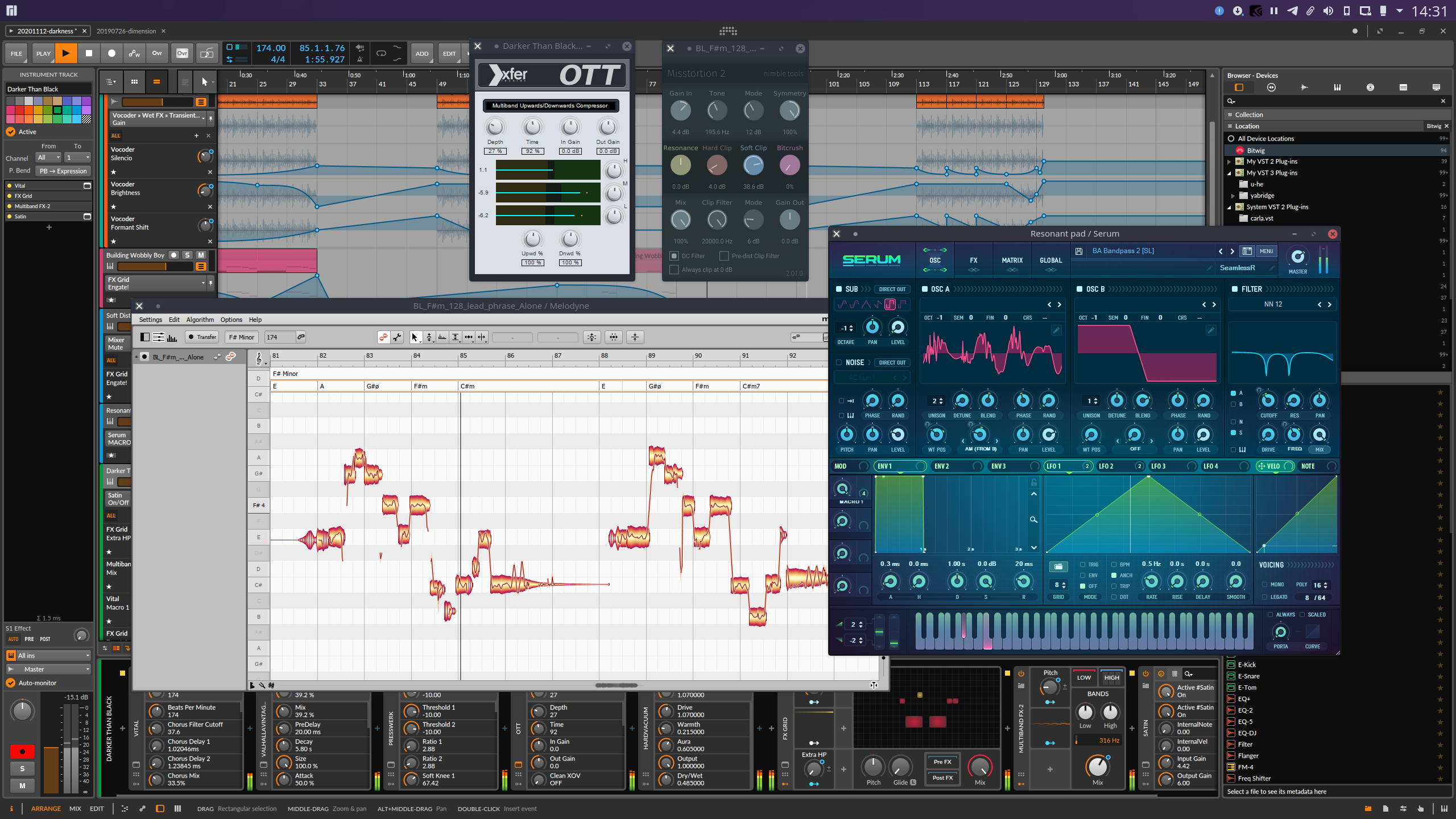
Yet Another way to use Windows VST plugins on Linux. Yabridge seamlessly
|
|
supports running both 64-bit Windows VST2 plugins as well as 32-bit Windows VST2
|
|
plugins in a 64-bit Linux VST host. This project aims to be as transparent as
|
|
possible to achieve the best possible plugin compatibility while also staying
|
|
easy to debug and maintain.
|
|
|
|
|
|
|
|
## Tested with
|
|
|
|
Yabridge has been verified to work correctly in the following VST hosts using
|
|
Wine Staging 5.8:
|
|
|
|
- Bitwig Studio 3.1 and the beta releases of 3.2
|
|
- Carla 2.1
|
|
- Ardour 5.12
|
|
- Mixbus 6.0.702
|
|
- REAPER 6.09
|
|
- Renoise 3.2.1
|
|
|
|
Please let me know if there are any issues with other VST hosts.
|
|
|
|
## Usage
|
|
|
|
You can either download a prebuilt version of yabridge through the GitHub
|
|
[releases](https://github.com/robbert-vdh/yabridge/releases) section, or you can
|
|
compile it from source using the instructions in the [build](#Building) section
|
|
below.
|
|
|
|
There are two ways to use yabridge. If your host supports plugin sanboxing, then
|
|
the recommended installation method is to use symbolic links. The main advantage
|
|
here is that you will be able to update yabridge for all of your plugins in one
|
|
go, and it avoids having to either install outside of your home directory or to
|
|
set up environment variables. Sadly, not all hosts support this behavior. The
|
|
copy-based installation will work for all hosts.
|
|
|
|
### Symlinking (recommended for Bitwig Studio)
|
|
|
|
This is the recommended way to use yabridge if you're using Bitwig Studio or any
|
|
other VST host that supports _invididually sandboxed plugins_. If you use Bitwig
|
|
Studio and you do not want to use the '_Individually_' plugin hosting mode, then
|
|
you should follow the instructions from the [copying](#Copying) section below
|
|
instead. For this installation method you can either use the prebuilt binaries
|
|
from the [GitHub releases](https://github.com/robbert-vdh/yabridge/releases)
|
|
section, or you can build yabridge directly from source. If you use the prebuilt
|
|
binaries, then you can simply extract them to `~/.local/share/yabridge` or to
|
|
any other location in your home directory. If you choose to build from source,
|
|
then you can use the compiled binaries directly from the `build/` directory. For
|
|
the section below I'm going to assume you've extracted the files to
|
|
`~/.local/share/yabridge`.
|
|
|
|
To set up yabridge for a VST plugin called `~/.wine/drive_c/Program Files/Steinberg/VstPlugins/plugin.dll`, simply create a symlink from
|
|
`~/.local/share/yabridge/libyabridge.so` to `~/.wine/drive_c/Program Files/Steinberg/VstPlugins/plugin.so`, like so:
|
|
|
|
```shell
|
|
ln -s ~/.local/share/yabridge/libyabridge.so "$HOME/.wine/drive_c/Program Files/Steinberg/VstPlugins/plugin.so"
|
|
```
|
|
|
|
As an example, if you wanted to set up yabridge for all VST plugins under
|
|
`~/.wine/drive_c/Program Files/Steinberg/VstPlugins`, you could run the
|
|
following script in Bash. This will skip any `.dll` files that are not actually
|
|
VST plugins.
|
|
|
|
```shell
|
|
yabridge_home=$HOME/.local/share/yabridge
|
|
plugin_dir="$HOME/.wine/drive_c/Program Files/Steinberg/VstPlugins"
|
|
|
|
find "$plugin_dir" -type f -iname '*.dll' -print0 |
|
|
xargs -0 -P$(nproc) -I{} bash -c "(winedump -j export '{}' | grep -qE 'VSTPluginMain|main|main_plugin') && printf '{}\0'" |
|
|
sed -z 's/\.dll$/.so/' |
|
|
xargs -0 -n1 ln -sf "$yabridge_home/libyabridge.so"
|
|
```
|
|
|
|
### Copying
|
|
|
|
This installation method will work for all VST hosts. This works similar to the
|
|
procedure described above, but using copies of `libyabridge.so` instead of
|
|
symlinks. For this you will have to make sure that all four of the
|
|
`yabridge-host*` files from the downloaded archive are somewhere in the search
|
|
path. The recommended way to do this is to download yabridge from the GitHub
|
|
[releases](https://github.com/robbert-vdh/yabridge/releases) section, extract
|
|
all the files to `~/.local/share/yabridge`, and then add that directory to your
|
|
`$PATH` environment variable. Alternatively there's an [AUR
|
|
package](https://aur.archlinux.org/packages/yabridge/) available if you're
|
|
running Arch or Manjaro.
|
|
|
|
The setup process for a plugin is similar to the procedure described above.
|
|
Using the same example, if you have extracted yabridge's files to
|
|
`~/.local/share/yabridge` and you want to set up yabridge for a VST plugin
|
|
called `~/.wine/drive_c/Program Files/Steinberg/VstPlugins/plugin.dll`, then you
|
|
should copy `~/.local/share/yabridge/libyabridge.so` to `~/.wine/drive_c/Program Files/Steinberg/VstPlugins/plugin.so`, like so:
|
|
|
|
```shell
|
|
cp ~/.local/share/yabridge/libyabridge.so "$HOME/.wine/drive_c/Program Files/Steinberg/VstPlugins/plugin.so"
|
|
```
|
|
|
|
To install yabridge for all VST2 plugins under `~/.wine/drive_c/Program Files/Steinberg/VstPlugins` you could use the following script:
|
|
|
|
```shell
|
|
yabridge_home=$HOME/.local/share/yabridge
|
|
plugin_dir="$HOME/.wine/drive_c/Program Files/Steinberg/VstPlugins"
|
|
|
|
find "$plugin_dir" -type f -iname '*.dll' -print0 |
|
|
xargs -0 -P$(nproc) -I{} bash -c "(winedump -j export '{}' | grep -qE 'VSTPluginMain|main|main_plugin') && printf '{}\0'" |
|
|
sed -z 's/\.dll$/.so/' |
|
|
xargs -0 -n1 cp "$yabridge_home/libyabridge.so"
|
|
```
|
|
|
|
### DAW setup
|
|
|
|
Finally, open your DAW's VST location configuration and tell it to look for
|
|
plugins under `~/.wine/drive_c/Program Files/Steinberg/VstPlugins`. That way it
|
|
will automatically pick up any of your Windows VST2 plugins.
|
|
|
|
### Bitbridge
|
|
|
|
If you have downloaded the prebuilt version of yabridge or if have followed the
|
|
instructions from the [bitbridge](#32-bit-bitbridge) section below, then
|
|
yabridge is also able to load 32-bit VST plugins. The installation procedure for
|
|
32-bit plugins is exactly the same as for 64-bit plugins. Yabridge will
|
|
automatically detect whether a plugin is 32-bit or 64-bit on startup and it will
|
|
handle it accordingly.
|
|
|
|
### Plugin groups
|
|
|
|
Some plugins have the ability to communicate with other instances of that same
|
|
plugin or with other plugins made by the same manufacturer. This is often used
|
|
in mixing plugins to allow different tracks to reference each other without
|
|
having to route audio between them. Examples of plugins that do this are
|
|
Fabfilter Pro-Q 3, MMultiAnalyzer and the iZotope mixing plugins. For this to
|
|
work, all instances of a particular plugin have to be hosted in the same
|
|
process.
|
|
|
|
Yabridge has the concept of _plugin groups_, which are user defined groups of
|
|
plugins that will all be hosted in the same process. These plugins groups can be
|
|
configured using a `yabridge.toml` file located either in the same directory as
|
|
the symlink of or copy to `libyabridge.so`, or in any directories above it. This
|
|
file contains case sensitive
|
|
[glob](https://www.man7.org/linux/man-pages/man7/glob.7.html) patterns that are
|
|
used to match the names of `*.so` files relative to that `yabridge.toml` file.
|
|
These patterns can also match an entire directory. For simplicity's sake only
|
|
the first `yabridge.toml` file found and only the first glob pattern matched
|
|
within that file are considered. An example `yabridge.toml` file looks like
|
|
this:
|
|
|
|
```toml
|
|
# ~/.wine/drive_c/Program Files/Steinberg/VstPlugins/yabridge.toml
|
|
|
|
["FabFilter Pro-Q 3.so"]
|
|
group = "fabfilter"
|
|
|
|
["MeldaProduction/Tools/MMultiAnalyzer.so"]
|
|
group = "melda"
|
|
|
|
# Matches an entire directory and all files inside it. Make sure to not include
|
|
# a trailing slash.
|
|
["ToneBoosters"]
|
|
group = "toneboosters"
|
|
|
|
["iZotope*/Neutron *"]
|
|
group = "izotope"
|
|
|
|
["iZotope7/Insight 2.so"]
|
|
group = "izotope"
|
|
|
|
# This won't do anything, since the pattern above has already matched this file
|
|
["iZotope7/Neutron 2 Mix Tap.so"]
|
|
group = "This will be ignored!"
|
|
|
|
# Don't do this! This matches all plugins in this directory and all of its
|
|
# subdirectories, causing all of them to be hosted in a single process. While
|
|
# this would increase startup performance considerably, it will also break any
|
|
# form of individual plugin sandboxing provided by the host and could
|
|
# potentially introduce all kinds of weird issues.
|
|
# ["*"]
|
|
# group = "all"
|
|
```
|
|
|
|
### Wine prefixes
|
|
|
|
It is also possible to use yabridge with multiple Wine prefixes. Yabridge will
|
|
automatically detect and use the Wine prefix the plugin's `.dll` file is located
|
|
in. Alternatively you could set the `WINEPREFIX` environment variable to
|
|
override the Wine prefix for all instances of yabridge.
|
|
|
|
## Troubleshooting common issues
|
|
|
|
- If you're using the copying installation method and plugins are getting
|
|
skipped or blacklisted immediately when your VST host is scanning them, then
|
|
this is likely caused by `yabridge-host.exe` not being found in your search
|
|
path. Make sure the directory you installed yabridge to (e.g.
|
|
`~/.local/share/yabridge`) is listed in your `PATH` environment variable. For
|
|
instance, if you're using the default Bash shell, then you could append this
|
|
line to `~/.bash_profile` (not to `~/.bashrc`):
|
|
|
|
```shell
|
|
export PATH="$HOME/.local/share/yabridge:$PATH"
|
|
```
|
|
|
|
You'll likely have to log out and back in again for this to take effect for
|
|
applications not launched through a terminal. To check whether everything's
|
|
set up correctly you could run `which yabridge-host.exe` in a terminal. If it
|
|
is, then that should print a path to `yabridge-host.exe`.
|
|
|
|
- If you're using the symlink installation method and you're seeing multiple
|
|
duplicate instances of the same plugin, or after opening one plugin every
|
|
subsequent plugin opens as another instance of the first plugin you've opened,
|
|
then your VST host is not sandboxing individual plugins. If you're using
|
|
Bitwig Studio, make sure the '_Individual_' plugin hosting mode is enabled and
|
|
all of the checkboxes in the list of sandboxing exceptions are left unchecked.
|
|
|
|
- Sometimes left over Wine processes can cause problems. Run `wineserver -k` to
|
|
terminate Wine related in the current or default Wine prefix.
|
|
|
|
- Time out errors during plugin scanning are caused by the Wine process not
|
|
being able to start. There should be plugin output messages in your DAW or
|
|
terminal that with more information on what went wrong.
|
|
|
|
## Runtime dependencies and known issues
|
|
|
|
Any VST2 plugin should function out of the box, although some plugins will need
|
|
some additional dependencies for their GUIs to work correctly. Notable examples
|
|
include:
|
|
|
|
- **Native Instruments** plugins work, but Native Access is unable to finish
|
|
installing the plugins. To work around this you can open the .iso file
|
|
downloaded to your downloads directory and run the installer directly. When
|
|
activating the plugins you may have to cancel the self-updating in NI Service
|
|
Center.
|
|
- **Serum** requires you to disable `d2d1.dll` in `winecfg` and to install
|
|
`gdiplus` through `winetricks`.
|
|
|
|
Aside from that, these are some known caveats:
|
|
|
|
- Plugins by **KiloHearts** have file descriptor leaks when esync is enabled,
|
|
causing Wine and yabridge to eventually stop working after the system hits the
|
|
open file limit. This sadly cannot be fixed in yabridge. Simply unset
|
|
`WINEESYNC` while using yabridge if this is an issue.
|
|
- Most recent **iZotope** plugins don't have a functional GUI in a typical out
|
|
of the box Wine setup because of missing dependencies. Please let me know if
|
|
you know which dependencies are needed for these plugins to render correctly.
|
|
|
|
There are also some VST2.X extension features that have not been implemented yet
|
|
because I haven't needed them myself. Let me know if you need any of these
|
|
features for a certain plugin or VST host:
|
|
|
|
- Double precision audio (`processDoubleReplacing`).
|
|
- SysEx messages. In addition to MIDI, VST 2.4 also supports SysEx. I don't know
|
|
of any hosts or plugins that use this, but please let me know if this is
|
|
needed for something.
|
|
- Vendor specific extension (for instance, for
|
|
[REAPER](https://www.reaper.fm/sdk/vst/vst_ext.php), though most of these
|
|
extension functions will work out of the box without any modifications).
|
|
|
|
## Building
|
|
|
|
To compile yabridge, you'll need [Meson](https://mesonbuild.com/index.html) and
|
|
the following dependencies:
|
|
|
|
- gcc (tested using GCC 9.2)
|
|
- A Wine installation with `winegcc` and the development headers. The latest
|
|
commits contain a workaround for a winelib [compilation
|
|
issue](https://bugs.winehq.org/show_bug.cgi?id=49138) with Wine 5.7+.
|
|
- Boost with at least `libboost_filesystem.a`
|
|
- xcb
|
|
|
|
The following dependencies are included in the repository as a Meson wrap:
|
|
|
|
- bitsery
|
|
- tomlplusplus
|
|
|
|
The project can then be compiled as follows:
|
|
|
|
```shell
|
|
meson setup --buildtype=release --cross-file cross-wine.conf build
|
|
ninja -C build
|
|
```
|
|
|
|
After you've finished building you can follow the instructions under the
|
|
[usage](#Usage) section on how to set up yabridge.
|
|
|
|
### 32-bit bitbridge
|
|
|
|
It is also possible to compile a host application for yabridge that's compatible
|
|
with 32-bit plugins such as old SynthEdit plugins. This will allow yabridge to
|
|
act as a bitbirdge, allowing you to run old 32-bit only Windows VST2 plugins in
|
|
a modern 64-bit Linux VST host. For this you'll need to have installed the 32
|
|
bit versions of the Boost and XCB libraries. This can then be set up as follows:
|
|
|
|
```shell
|
|
# Enable the bitbridge on an existing build
|
|
meson configure build -Duse-bitbridge=true
|
|
# Or configure a new build from scratch
|
|
meson setup --buildtype=release --cross-file cross-wine.conf -Duse-bitbridge=true build
|
|
|
|
ninja -C build
|
|
```
|
|
|
|
This will produce two files called `yabridge-host-32.exe` and
|
|
`yabridge-host-32.exe.so`. Yabridge will detect whether the plugin you're trying
|
|
to load is 32-bit or 64-bit, and will run either `yabridge-host.exe` or
|
|
`yabridge-host-32.exe` accordingly.
|
|
|
|
## Debugging
|
|
|
|
Wine's error messages and warning are usually very helpful whenever a plugin
|
|
doesn't work right away. Sadly this information is not always available. Bitwig,
|
|
for instance, hides a plugin's STDOUT and STDERR streams from you. To make it
|
|
easier to debug malfunctioning plugins, yabridge offers these two environment
|
|
variables:
|
|
|
|
- `YABRIDGE_DEBUG_FILE=<path>` allows you to write the Wine VST host's STDOUT
|
|
and STDERR messages to a file. For instance, you could launch your DAW with
|
|
`env YABRIDGE_DEBUG_FILE=/tmp/yabridge.log <daw>`, and then use `tail -F /tmp/yabridge.log`
|
|
to keep track of that file. If this option is not present then yabridge will
|
|
write all of its debug messages to STDERR instead.
|
|
- `YABRIDGE_DEBUG_LEVEL={0,1,2}` allows you to set the verbosity of the debug
|
|
information. Each level increases the amount of debug information printed:
|
|
|
|
- A value of `0` (the default) means that yabridge will only write messages
|
|
from the Wine process and some basic information such about the plugin being
|
|
loaded and the Wine prefix being used.
|
|
- A value of `1` will log information about most events and function calls
|
|
sent between the VST host and the plugin. This filters out some noisy events
|
|
such as `effEditIdle()` and `audioMasterGetTime()` since those are sent tens
|
|
of times per second by for every plugin.
|
|
- A value of `2` will cause all of the events to be logged, including the
|
|
events mentioned above. This is very verbose but it can be crucial for
|
|
debugging plugin-specific problems.
|
|
|
|
More detailed information about these debug levels can be found in
|
|
`src/common/logging.h`.
|
|
|
|
Wine's own [logging facilities](https://wiki.winehq.org/Debug_Channels) can also
|
|
be very helpful when diagnosing problems. In particular the `+message` and
|
|
`+relay` channels are very useful to trace the execution path within loaded VST
|
|
plugin itself.
|
|
|
|
### Attaching a debugger
|
|
|
|
When needed, I found the easiest way to debug the plugin to be to load it in an
|
|
instance of Carla with gdb attached:
|
|
|
|
```shell
|
|
env YABRIDGE_DEBUG_FILE=/tmp/yabridge.log YABRIDGE_DEBUG_LEVEL=2 carla --gdb
|
|
```
|
|
|
|
Doing the same thing for the Wine VST host can be a bit tricky. You'll need to
|
|
launch winedbg in a seperate detached terminal emulator so it doesn't terminate
|
|
together with the plugin, and winedbg can be a bit picky about the arguments it
|
|
accepts. I've already set this up behind a feature flag for use in KDE Plasma.
|
|
Other desktop environments and window managers will require some slight
|
|
modifications in `src/plugin/plugin-bridge.cpp`. To enable this, simply run:
|
|
|
|
```shell
|
|
meson configure build --buildtype=debug -Duse-winedbg=true
|
|
```
|